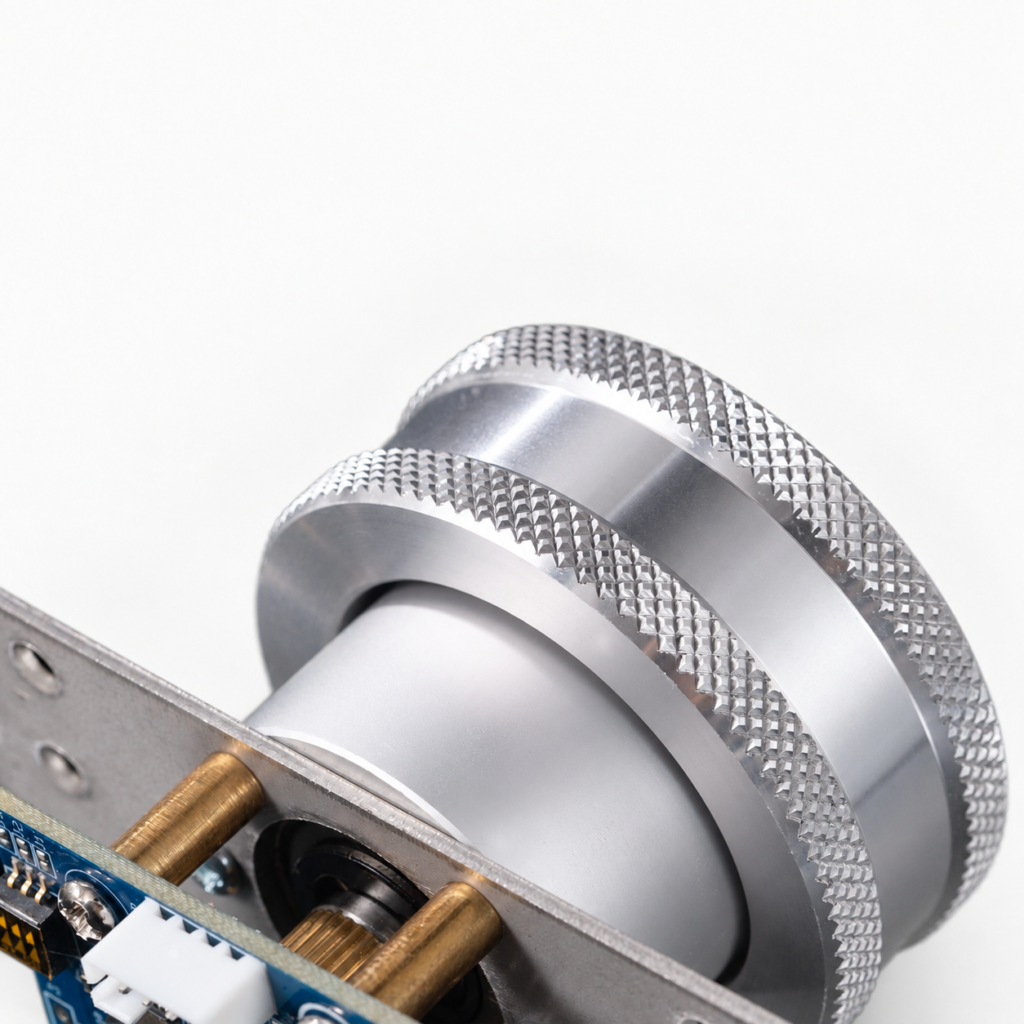
Why the specialists matter
A joystick is a compromise control: it plays everything adequately and some entire genres incorrectly. Dial games were designed around a free-spinning knob, trackball games around a rolling ball, and gun games around pointing at the screen. Emulating them on a stick is possible and unsatisfying in a way players feel immediately. The good news is that all three specialists are USB devices that present as mouse-class inputs — adding them to an existing Pi or PC cabinet is an afternoon’s work each, and this tutorial covers the shared method plus the specifics of each.
Parts for these upgrades:
- Spinner: ThunderStick GRS Arcade Spinner (TS-USP01)
- Trackball: ThunderStick LED Arcade Trackball (TS-UTB01)
- Light gun: Sinden Lightgun with Recoil, or the MAYFLASH DolphinBar + Wii Remote route
- Panel tools: the correct hole saw or step bit for your control, a drill, masking tape
Before any drilling: plan the layout
Specialist controls consume the panel’s scarcest resource — space between the players. Place a trackball centered and low, where both players can reach it and palms can rest on the panel edge; a spinner belongs within easy reach of player 1 (most dial games are single-player) and clear of the stick’s swing. Tape paper templates to the panel, stand in playing position, and mime the games. The second-most-common layout regret is a trackball so close to the screen that bowling and golf swings rap knuckles on the bezel; leave follow-through room. The most common regret is drilling first and templating never.
Adding the spinner
Step 1. Drill the mounting hole at your templated position and fit the spinner from above, securing the nut beneath the panel. Step 2. Connect USB to the brain; the GRS spinner is plug-and-play on PC, Mac and Pi front ends with no drivers. Step 3. Set sensitivity: the unit’s on-board dip switches set its resolution, and your emulator’s analog settings fine-tune per game — Tempest wants a different feel than Arkanoid, and per-game settings are worth the five minutes. Step 4. Test with a paddle game as well; Breakout-style titles are the spinner’s home turf too. Arcade1Up owners note: this spinner is also the standard drop-in upgrade for Arcade1Up spinner cabinets, though some 12-in-1 units need the separate interface board.
Adding the trackball
Step 1. Cut the trackball opening — the largest hole in this tutorial, so measure from the product’s template, twice. The TS-UTB01 mounts with its interface board inside the panel and connects over USB with no soldering. Step 2. Orient the unit correctly before fixing it: trackballs have a “toward screen” direction for their rollers, and a unit mounted 90 degrees out will scroll your aim sideways — test roll direction on the bench before final mounting. Step 3. Configure the emulator’s trackball sensitivity and enable it per-game; golf and bowling titles want a heavier roll multiplier than Centipede. Step 4. Set the LED lighting — the ball offers adjustable RGB in seven colors, and matching it to your marquee is the kind of detail guests photograph. Note for Arcade1Up upgraders: this unit drops into the Atari 12-in-1 and Centipede cabinets, but the Centipede Legacy unit requires the TS-UTB-PRO model instead.
Adding the light gun
The gun is the only upgrade here that is mostly software. Step 1. For the Sinden, position the screen border the gun’s camera reads: the software draws a thin border around the game image, which the gun tracks — no sensor bars, no hardware on the display. Step 2. Connect over USB (the 5-meter cable reaches a cabinet’s brain comfortably; recoil models justify a powered hub, as recoil draw plus a second gun can brown out an unpowered port). Step 3. Run the Sinden software’s calibration at your actual playing distance and in the room’s actual lighting, then configure your emulator to use the gun as an absolute pointing device. Step 4. Set offscreen reload per game — the Sinden supports it natively — and test a 2-player title if you fitted two guns.
The budget route differs in hardware only: mount the DolphinBar centered above or below the screen, pair the Wii Remote through the bar (no separate Bluetooth dongle), select its light-gun mode, and calibrate in Dolphin or your PC front end. Expect infrared pointing behavior — keep the bar in the Remote’s view and stand at a sensible distance.
Where these controls change the cabinet
A cabinet fitted with all three specialists covers effectively the whole arcade canon — and starts to justify its floor space against purpose-built machines. The Arcade1Up Golden Tee 3D Deluxe exists because one great trackball game can anchor a room; a trackball in your own build buys that whole genre at once. If gun games are the anchor rather than an addition, our light-gun guide covers the dedicated-cabinet routes, including the Gun House shell.
Living with three devices: USB order and per-game profiles
Each specialist you add is another USB device your front end must recognize in the right role, and USB enumeration is not sentimental — devices can trade places across reboots, and a panel that worked in March can wake in April with the spinner answering as the mouse and the trackball scrolling menus. Two habits keep the peace. First, plug the finished panel into the same physical ports forever, and if your front end supports locking device assignments by hardware ID, lock them; the five minutes spent there replaces a recurring half-hour fault. Second, keep per-game analog profiles for the dozen titles that define each control — the sensitivity that makes Marble Madness sing makes Centipede twitchy — and resist tuning globally for the game you played last. A small settings note taped inside the cabinet door, listing each game’s sensitivity values, is the mark of a builder who has been hurt before and declined to be hurt the same way twice.
Also plan the panel’s service position before the specialists go in: a trackball and spinner add weight and cable bulk exactly where your hands reach when the panel opens. Service loops, again — enough slack to rest the panel fully open without a connector bearing the load.
Final checks
- Every specialist configured per-game where the feel demands it, and globally consistent everywhere else.
- Cables dressed with service loops, so the panel still opens without unplugging the new hardware.
- The front end’s device order re-tested after any USB change — adding devices is the classic way player 1 becomes player 2.